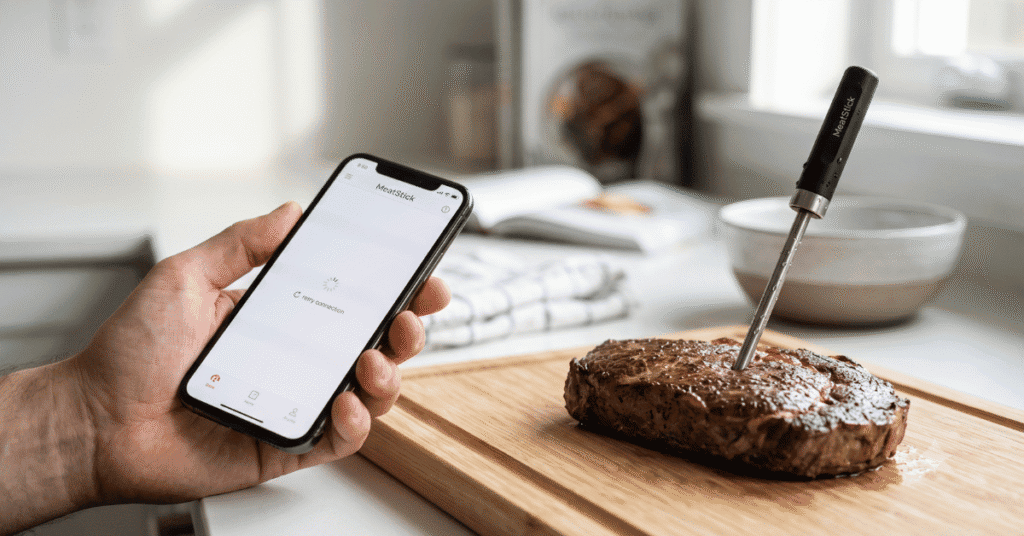
You’ve prepped the brisket, set the smoker to the perfect temperature, and slid your probe into the meat. But when you open the app to monitor the cook from the couch, the screen stays gray or shows a searching icon that never disappears. Losing a connection in the middle of a long smoke is frustrating, especially when you are counting on those real-time temperature alerts to prevent overcooking.
To fix your MeatStick app not connecting, ensure your phone’s Bluetooth and Location Services are turned on, as the app requires both to “see” the probe. If the connection fails, reset the probe by placing it in the charger for five seconds, then toggle your phone’s Bluetooth off and back on. Most sync issues stem from the probe being out of range or having a low battery charge.
Why a Stable Connection Matters for Precision Cooking
The MeatStick relies on a specific type of wireless communication called Bluetooth Low Energy (BLE). Unlike standard Bluetooth speakers that stay “paired” in your phone’s settings menu, BLE devices like smart thermometers often connect directly through their specific app. This mechanism allows the probe to save battery life while sending frequent temperature updates.
If this handoff between the hardware and the software fails, you lose the ability to track the internal temperature of your food. Because the probe is encased in a metal grill or an oven, both of which act as shields against wireless signals, the connection is inherently under stress. Understanding how to reinforce that signal path is the difference between a perfectly rendered fat cap and a dry, ruined dinner.
The Role of the Charger and Xtender
For many MeatStick models, the charger acts as more than just a power dock; it serves as a signal repeater. If you are using a “Mini” or a “Chef” model, the range is often limited to the immediate vicinity of the cooker unless the charger is positioned nearby to bridge the signal to your phone. When the app won’t connect, the breakdown often happens at this bridge rather than at the probe itself.
Signal Interference in the Kitchen
Kitchens are high-interference environments. Microwaves, thick stainless steel appliances, and even the water content in the meat itself can absorb or deflect Bluetooth signals. When the app refuses to sync, it is often struggling to cut through this electronic noise.
Acknowledging these environmental factors helps you narrow down whether the issue is a software glitch or a physical blockage.
1. Verify Bluetooth and Location Permissions
The most common reason for a connection failure is missing “behind-the-scenes” permissions on your smartphone. On both iOS and Android, Bluetooth alone isn’t enough for the MeatStick app to function.
Most users are surprised to find that Location Services must be enabled for the MeatStick app to work. This isn’t because the company wants to track your movements; it is a requirement of the Android and iOS operating systems for BLE device discovery. Without location data, the phone won’t allow the app to scan for nearby Bluetooth hardware.
Checking Permissions on Android
-
Open your Settings app.
-
Tap on “Apps” and find The MeatStick app.
-
Select “Permissions.”
-
Ensure both “Bluetooth” (or “Nearby Devices”) and “Location” are set to “Allow while using the app.”
Checking Permissions on iOS
-
Go to Settings.
-
Scroll down until you see The MeatStick in your list of apps.
-
Toggle the “Bluetooth” switch to green.
-
Tap “Location” and select “While Using the App.”
2. Perform a Hard Reset of the Probe and App
Sometimes the “handshake” between the probe and the app gets stuck in a loop. A hard reset clears the temporary memory in both the hardware and the software, forcing them to look for each other from scratch.
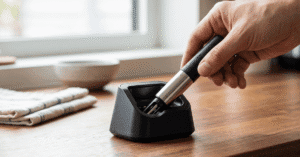
To reset the probe, place it back into its charger. Check that the gold contact points on the probe are clean; a small amount of grease or carbon buildup can prevent the charger from “seeing” the stick. Leave it in the dock for at least ten seconds.
Meanwhile, “force close” the app on your phone. Don’t just swipe it away; go to your app switcher and flick it off the screen entirely.
Once you take the probe back out of the charger, it enters “pairing mode” automatically. Reopen the app immediately. In many cases, the app will recognize the fresh signal and reconnect within five seconds.
3. Manage Your Range and Obstructions
Bluetooth signals have a hard time passing through solid objects, especially the heavy insulated walls of a ceramic smoker or a stainless steel oven. If the app won’t connect, your phone might simply be too far away from the source.
If you are using the MeatStick X or larger sets, your charger is an “Xtender.” This means the probe talks to the charger, and the charger talks to your phone. For this to work, the charger must be within 6-10 feet of the cooker. If you take your phone into the house while the charger stays by the grill, the link remains strong.
However, if the charger is too far from the grill, the probe can’t send its data to the bridge.
Optimal Placement Tips
-
Stick the magnetic charger to the leg of the grill or a nearby metal table.
-
Avoid placing the charger directly on a hot grill surface, as heat can damage the internal repeater.
-
Keep a direct line of sight between the charger and your phone if possible.
4. Eliminate Conflict with Other Bluetooth Devices
Your phone can technically connect to multiple Bluetooth devices at once, but it has a limited number of “channels.” If you are wearing a smartwatch, connected to a Bluetooth speaker, and using wireless earbuds all at the same time, the MeatStick app might struggle to maintain a stable data stream.
Temporary “crosstalk” can occur when another device is trying to pair at the same time you are starting your cook. A quick way to test this is to turn off other non-essential Bluetooth devices. If the MeatStick connects instantly once your headphones are off, you know you were dealing with signal congestion.
The “Bluetooth Toggle” Trick
If the app is open but shows no data, swipe down your phone’s control center and turn off Bluetooth entirely. Wait five seconds, then turn it back on. This forces the phone’s Bluetooth radio to restart its search for all nearby devices, often “catching” the MeatStick signal that it previously ignored.
5. Check Battery Levels and Contact Points
A weak battery is a common culprit for a drop in signal strength. If the probe is at 10% power, its ability to broadcast a signal through a metal oven door drops significantly.
Check the LED light on your charger. If the light is red or not blinking as expected, the charger itself might need new batteries. Most MeatStick chargers run on AA or AAA batteries.
If these are low, the “Xtender” function won’t have enough power to boost the signal to your phone, leading to frequent disconnections.
Furthermore, inspect the probe’s ceramic handle and the metal tip. If there is a thin film of oil from a previous cook, it can insulate the charging contacts. Wipe the probe down with a damp cloth and some dish soap, dry it thoroughly, and try docking it again.
According to the Official MeatStick Support Documentation, keeping these contacts shiny is the best way to avoid charging and syncing failures.
Deep Dive: Firmware and Software Updates
If you have tried the five physical fixes above and still can’t get a connection, the problem might be a version mismatch. The MeatStick team frequently releases firmware updates for the probes and chargers to improve connection stability and battery management.
To update, your app usually needs to be connected to the internet (Wi-Fi or cellular data). If your app version is outdated, it may not know how to communicate with a newer probe, or vice versa. Always check the App Store or Google Play Store for an update before you start a long cook.
Firmware Update Failures
Occasionally, a firmware update will hang at 99%. If this happens, do not turn off your phone. Bring the phone as close to the charger as possible and ensure the probe is securely docked.
A failed firmware update can “brick” the probe temporarily, making it appear as though it will never connect again. If this happens, leaving the probe out of the charger for 24 hours to let the battery drain completely, then recharging it, often resets the firmware to a base state.
Common Connection Variations
The way you troubleshoot depends slightly on the specific hardware you own. The MeatStick ecosystem has evolved, and different generations have different “quirks.”
-
The Original MeatStick: Highly dependent on the Xtender charger. If you lose connection, move the charger closer to the probe.
-
The MeatStick Mini: Has a shorter range overall. This model is designed for indoor kitchen use rather than long-range backyard smoking. If it won’t connect, you almost certainly need to be in the same room.
-
The MeatStick 4 (and WiFi Bridge): These models use a Wi-Fi bridge to send data to the cloud. If the app won’t connect here, the issue is likely your home router or Wi-Fi signal strength at the grill, not the Bluetooth link.
Mistakes to Avoid When Syncing
-
Pairing via System Settings: Never try to pair the MeatStick in your phone’s Bluetooth settings menu. It will often ask for a PIN or say “Rejected.” You must only pair through the MeatStick app itself.
-
Leaving the Probe in the Meat While Docking: Never try to “restart” the connection by putting the charger against the probe while it’s still in the meat. The probe must be fully seated in the dock.
-
Ignoring the Green Light: If the charger isn’t flashing green when the probe is removed, the probe hasn’t “woken up.” Try clicking it back into the charger firmly.
Issue Likely Cause Quick Fix
Searching indefinitely Location services off Enable GPS/Location in settings
Signal drops at 20 feet Range limit Move the charger closer to the grill
App says “No Probe Found” Probe is asleep Return probe to charger for 10 seconds
Data is frozen App glitch Force-close and restart the app
Won’t charge or sync Dirty contacts Clean probe with soap and water
Frequently Asked Questions
Why does my MeatStick disconnect as soon as I close the grill lid?
The metal lid of your grill acts as a Faraday cage, blocking the Bluetooth signal. To fix this, place your MeatStick charger (which acts as an Xtender) within a few feet of the grill. The probe only has to push the signal through the lid to the charger, which then handles the long-distance transmission to your phone.
Can I use the MeatStick app on two different phones at once?
Bluetooth usually only allows a “one-to-one” connection. If your spouse’s phone is already connected to the MeatStick, your phone will not be able to find it. Ensure the app is closed on all other nearby devices before attempting to connect to yours.
Does the Meatstick need Wi-Fi to connect?
No, the basic setup uses Bluetooth. However, if you are using the MeatStick WiFi Bridge, you will need a 2.4GHz Wi-Fi connection to monitor your cook from outside your home. For standard backyard use, Bluetooth is the primary link.
Why is my charger light blinking red?
A red blinking light on the charger usually indicates that the batteries inside the charger are low. Replace the AA or AAA batteries in the dock. A low-power charger cannot properly wake up the probe or extend the signal to your app.
Worth Remembering
A failed connection is rarely a sign of a broken probe. Most often, it is a simple matter of the phone’s operating system “forgetting” to look for the device or a physical obstacle blocking the signal. By keeping your charger close to the grill, ensuring your location permissions are active, and keeping your contact points clean, you can avoid 90% of sync issues.
If you are planning a high-stakes meal like a holiday turkey or a premium brisket, always do a “dry run” sync 15 minutes before the meat goes in the heat. This gives you time to toggle your settings without the pressure of a ticking clock.